See the screen shots
Play the web demo
E-mail: request information, ask questions or make comments
Bot Scavenger
A shipment of robots has crashed and robot parts have been scattered all over
the surface of Nyehba, the moon of a nearby planet. You know how to repair robots
and since, by the Law of Interspace Commerce, things lost in space belong to
whoever can retrieve them first, you decide to go over to if you can bring salvage
some robots. You land on Nyehba in your old BotRover, outfitted with robot pods,
to collect the parts, and a simple gun. The gun is handy because there may be
Protectos guarding the lost parts until the owners return.
Your Objective
Get as many robots as you can. You do this by collecting the parts and combining
them into robots while defending against enemy fire.
Collecting Parts
There are broken robot pieces all over the place. There are three types of pieces
you’ll find buried on the surface of Nyehba:
 |
 |
 |
| Head | Body | Legs |
Collecting a part is easy: you simply fly over one and your cargo bay doors will automatically open to retrieve the part into one of your ship’s four pods.
Building Robots
Simply having parts in the pods will not do – the parts will need to be
combined into robots so that they can be brought home. You can do this by flying
over a resource dome,  ,
which will automatically beam up the binding force that will put the pieces
together in full robots.
,
which will automatically beam up the binding force that will put the pieces
together in full robots. 
Be Careful!
The shipping company has sent over Protectos to protect its lost parts while
its recovery team is in transit. Protectos are small units that will attack
anyone that is trying to take the lost parts. Each part that is taken sends
out a distress signal to request protection and the more parts you collect,
the more likely the distress signals will get through. Parts that have been
built into robots will stop sending signals so you may want to build your robots
as quickly as possible.
Getting Hit
The Protectos are not there to harm you – they only want to prevent you
from taking the parts they are protecting – and so will aim only at your
pods. Each of your pods can sustain four direct hits before it is destroyed.
The less pods you have, the more trips you will need to make to the resource
centers to free them up to collect more parts.
Dealing with Protectos
You can get rid of Protectos by firing at them - crosshairs will show on your
viewport if you are on target to hit one. All protectos can carry one part it
is sheltering - by destroying a Protecto, you free up the part, which you may
then collect. On higher levels, the only way you can win the level is by destroying
Protectos to get the parts to fill your quota. One more thing: don’t collide
into Protectos - it will almost certainly destroy your ship.
Winning and Losing
You win each level when you’ve filled to quota of robots for that level.
When you win a level, your ship gets repaired a bit so that any damage you have
taken will be repaired - up to four hits worth. The game ends when all your
pods are destroyed since you won’t be able to take on any more parts.
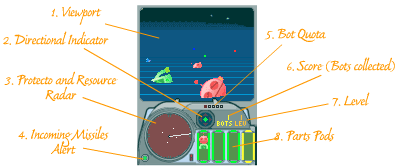
The Control
Panel
When you first start playing, don't worry about memorizing the entire control
panel - just concentrate on getting used to how your ship feels. The only things
that will matter are the directional indicator, which shows you what direction
your ship is moving in, and the parts pods, which show you what parts you have
collected and what you will need to complete a full robot. As you get more advanced,
you may wonder when missiles have been fired at you or how many robots you have
left to collect. You can then revisit this page to see what else you can use
to help you get the most robots.
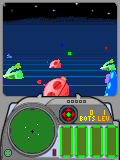
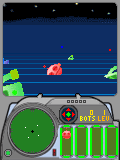
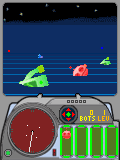
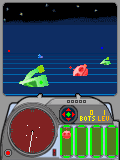
Visual Cues
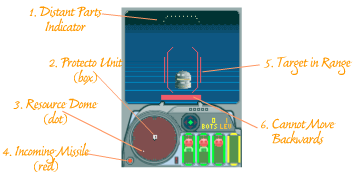
There are a number of hints that will appear in your viewport to tell you about
your situation.
 |
 |
 |
Look
around |
Go
towards a part |
Part
retrieved into pod |
 |
 |
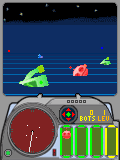 |
Red
radar indicates hostiles |
Incoming
missile alert |
Pod
took damage |
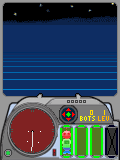 |
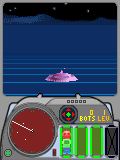 |
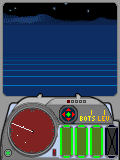 |
Enough
parts for a robot |
Find
resource dome |
Buil
a robot! |
Hints
© 2003 cyBohemia